
How To Monitor Offline Conversions in Google Ads

Last Updated on: 24th November 2025, 12:45 pm
It’s so easy to become hyper-focused on online metrics these days. We track clicks, impressions, and online purchases, often assuming that all sales are happening online.
However, in the US, for example, the vast majority of retail sales – 92% – still happen offline. Even though we live in an eCommerce world, where it feels like “nobody is even shopping in brick-and-mortar shops anymore,” this couldn’t be further from the truth.
So, if your business has both an online and offline presence, tracking offline conversions is a non-negotiable. In today’s article, I’ll explain how Google Ads can help you monitor those conversions and then take action with the data you receive.
Let’s take a look!
What Are Offline Conversions in Google Ads?
Simply put, offline conversions are actions that customers take in the real world (not the online world) after interacting with your online ads. These actions can include:
- Phone calls: A potential customer clicks on your ad, visits your website, and calls your business to ask for more information.
- In-shop purchases: Someone sees your ad online, and then decides to visit your physical shop to buy something.
- Appointments and consultations: After clicking your ad and seeing your content, a customer schedules an appointment (either via an online form or phone call) and then attends an appointment at your office, practice, or shop.
Here’s Why You Should Track Offline Conversions in Google Ads (Starting Today)
When you track conversions, it’s not just Google Ads’ algorithm that you’re helping find more qualified leads. You’re also getting a stronger understanding of the value propositions in your ads that generate more business.
Optimise Your Google Ads Budget with Offline Conversion Tracking
Additionally, tracking offline conversions in Google Ads allows you to spend your advertising budget more effectively. You’ll know which Google Ads campaigns drive both online clicks and in-shop sales. For example, if you notice that your ads promoting your summer sale lead to increased website and foot traffic, you might spend more on these ads (versus others you would run at the time of the promotion).
Offline conversions in Google Ads used to be a black box. Calculating ROAS (Return on Advertising Spend) if a significant portion of your conversions happened over the phone or in your physical location was extremely difficult.
Now, it’s possible to syndicate all that information so you get the full picture of your ROAS and ROI.
On the audience side, you’ll see which ads drive action. Your future campaigns can intercept future customers where they currently are and serve them with the ads that are going to make them take action now.
Finally, as you get more and more information about the way your customers behave online and offline in tandem, you’ll be able to strengthen your audience targeting. When you pair that with their lifetime or repeat purchase value, you’ll soon be able to run Google Ads that target your highest-value prospects.
How Do Offline Conversions Work?
That’s all good and well until you ask me: “Claire, how is it possible to track all of those transactions – especially in a business with a high volume of sales?”
First, a Google Click ID (GCLID) Is Generated to Track Offline Conversions in Google Ads
When someone clicks on your Google ad and visits your website, Google generates a unique identifier called the Google Click ID (GCLID). This ID helps Google link the ad click to the conversion.
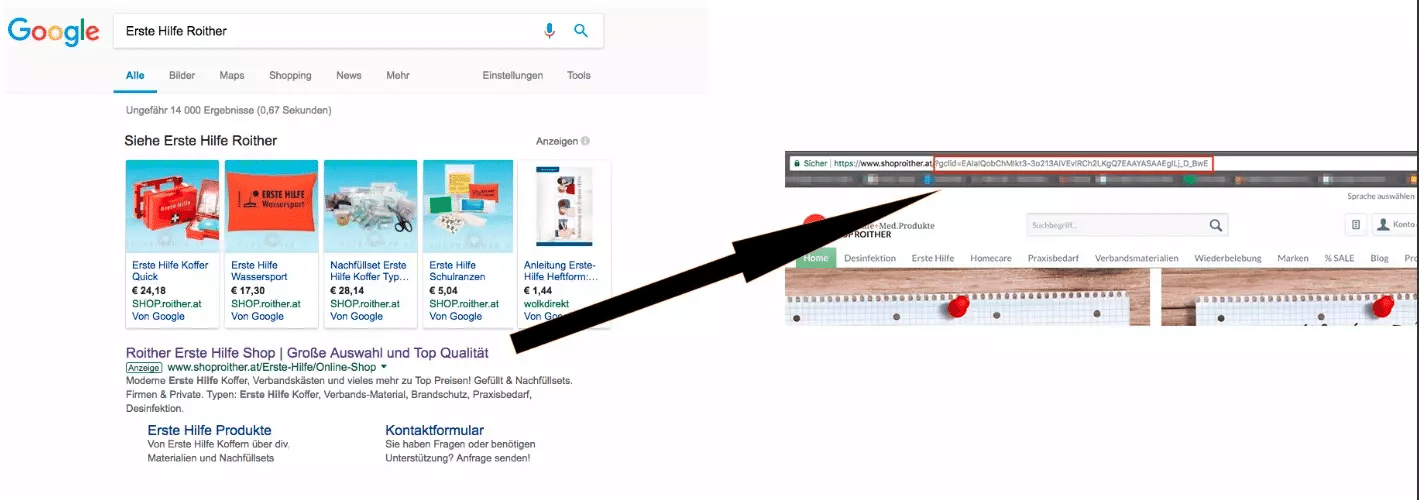
You collect this GCLID along with the visitor’s lead information (such as their name, email, or phone number) when they fill out a form, make a booking, or perform any other trackable action on your website.
Once you enable Auto-Tagging In Google Ads (by going to Admin > Account settings, then checking “Tag the URL that people click through from my ad,” and clicking “Save”) you’ll be creating GCLIDs automatically.

Next, Your Database Stores Lead Information Using the GCLID
Next, the GCLID and the lead information are stored in your customer relationship management (CRM) system or another database, like spreadsheet tools, marketing automation platforms, Customer Data Platforms (CDPs), and Enterprise Resource Planning (ERP) systems.
This step gives you a record of which ad interactions led to the initial interest or engagement (for example, a user clicking on a search ad for your product, filling out a contact form on your landing page, or making a purchase on your website after clicking on a display ad.)
The Customer Completes the Offline Conversion – You Match the Data Back to Them
Once the potential customer (now customer!) completes their purchase or desired action offline, you match this data back to the original GCLID stored in your database. This “connection” confirms that the offline action was triggered by the online ad click from this exact customer.
You Upload Your Conversion Data to Google Ads
After matching offline conversions to their respective GCLIDs, you can upload this data back into Google Ads. This can be done manually using a spreadsheet or automatically via the Google Ads API.
The latter option is preferred, especially if you’re closing several customers a day.
To make the process of matching offline conversions to their original GCLIDs more efficient, you can automate it.
For that to happen, you need to use CRM software that supports automated matching. You can also use the Google Ads API, which allows integration between your CRM and Google Ads. It will automate the upload of matched offline conversion data to Google Ads for you.
Finally, you can use data import tools (like Supermetrics) to make the automatic matching and uploading process simpler. These tools can be configured to periodically sync your CRM data with Google Ads.
All in all, with all these options, there’s no reason not to start tracking offline conversions as soon as possible!
What Do Google Ads Offline Conversions Look Like in Practice?
Suppose you own an electronics business selling both online and in-shop (AKA offline).
You’re running Google Ads promoting a new line of smartphones, encouraging users to go to your website and schedule an in-shop demo. As prospects book time in your schedule, you collect GCLIDs (along with the appointment details) in your CRM or database – because you have auto-tagging on.
Then, when customers go to your shop for the demo and make a purchase, your CRM links these purchases back to the original GCLIDs (presuming you’ve automated the process).
“Okay. But how can I apply this data back to their business?”
Glad you asked!
By analysing this data later, you discover that customers who click on ads for a specific smartphone model (the latest iPhone, for example) are more likely to visit the shop and buy. So, now you know: you can make the data-backed decision to increase your ad spend on that particular model’s ads.
You can also use these insights to adjust your messaging to highlight shop demos, and refine your targeting to focus on leads more likely to convert offline.
As a result, you’ll be using Google ads not only to generate website traffic but also to drive significant foot traffic to your shop!
How to Set Up Offline Conversion Tracking in Google Ads
Step 1: Integrate Google Click ID (GCLID) with Your CRM
When someone clicks your Google ad, this will make sure a unique GCLID is created to track the click.
For detailed instructions, refer to Google’s guide on setting up offline conversion imports via GCLID.
Step 2: Collect Offline Conversion Data
Record offline actions (like physical purchases made in your shop) in your CRM. Then, match these offline actions with the original GCLID stored in your CRM. You can do this by assigning reference codes to each action and associating them with corresponding GCLIDs recorded during online interactions.
Step 3: Upload Offline Conversion Data to Google Ads
Format offline conversion data (GCLID, conversion details) in a spreadsheet or a tool of your preference.
Step 4: Create Conversion Actions in Google Ads
- Log in to your Google Ads account.
- Click the + button to create a new conversion action.
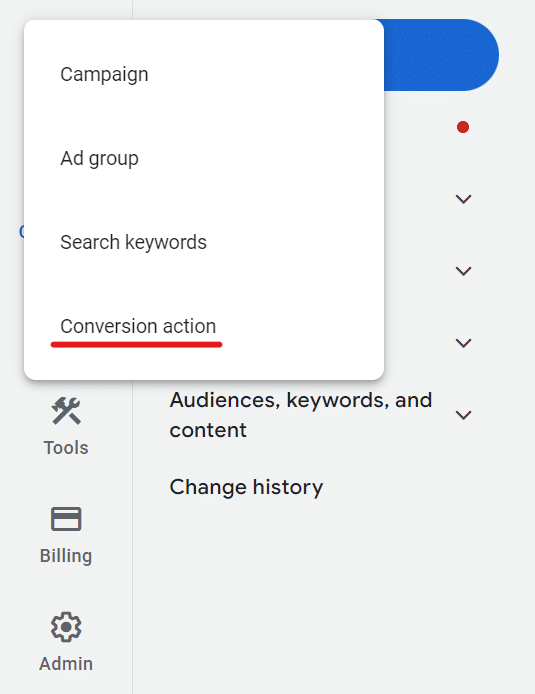
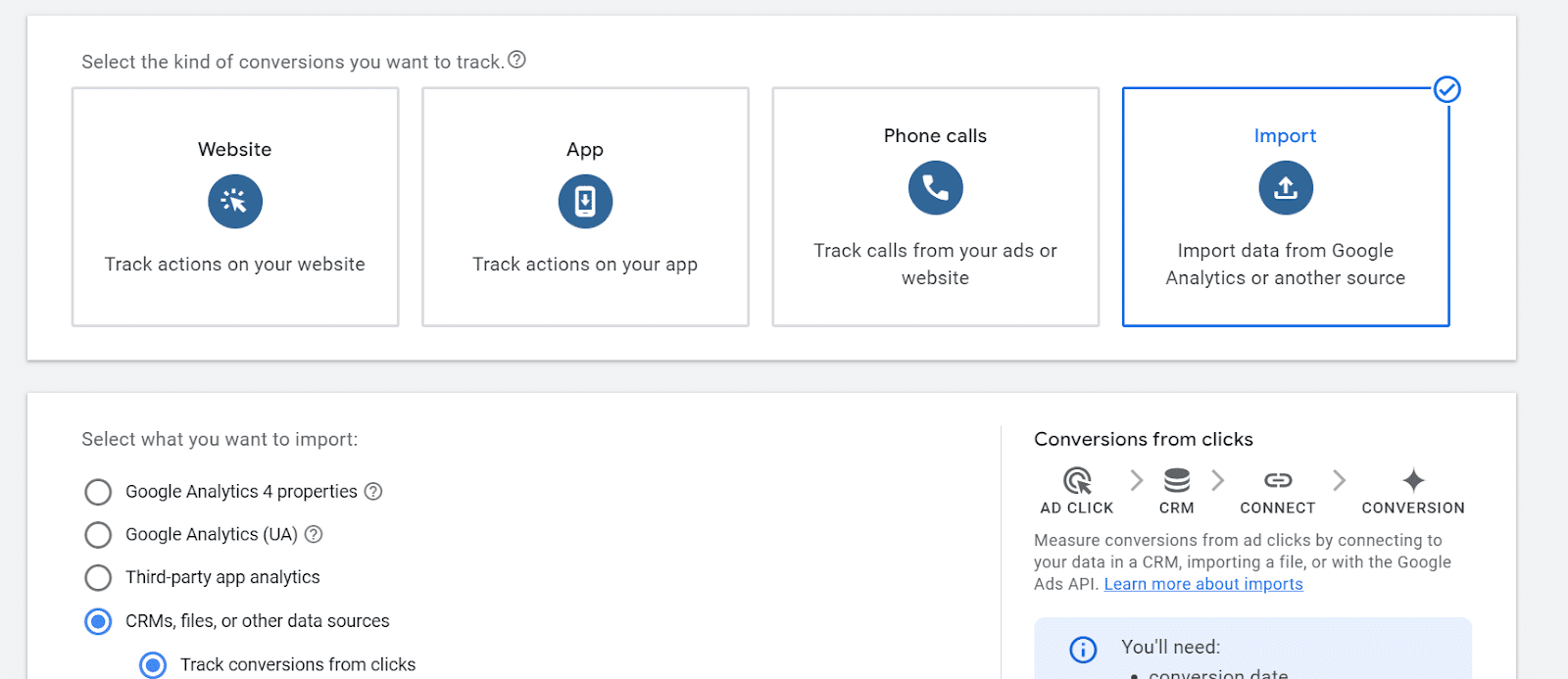
- Select Import > CRMs, files, or other data sources > Track conversions from clicks.
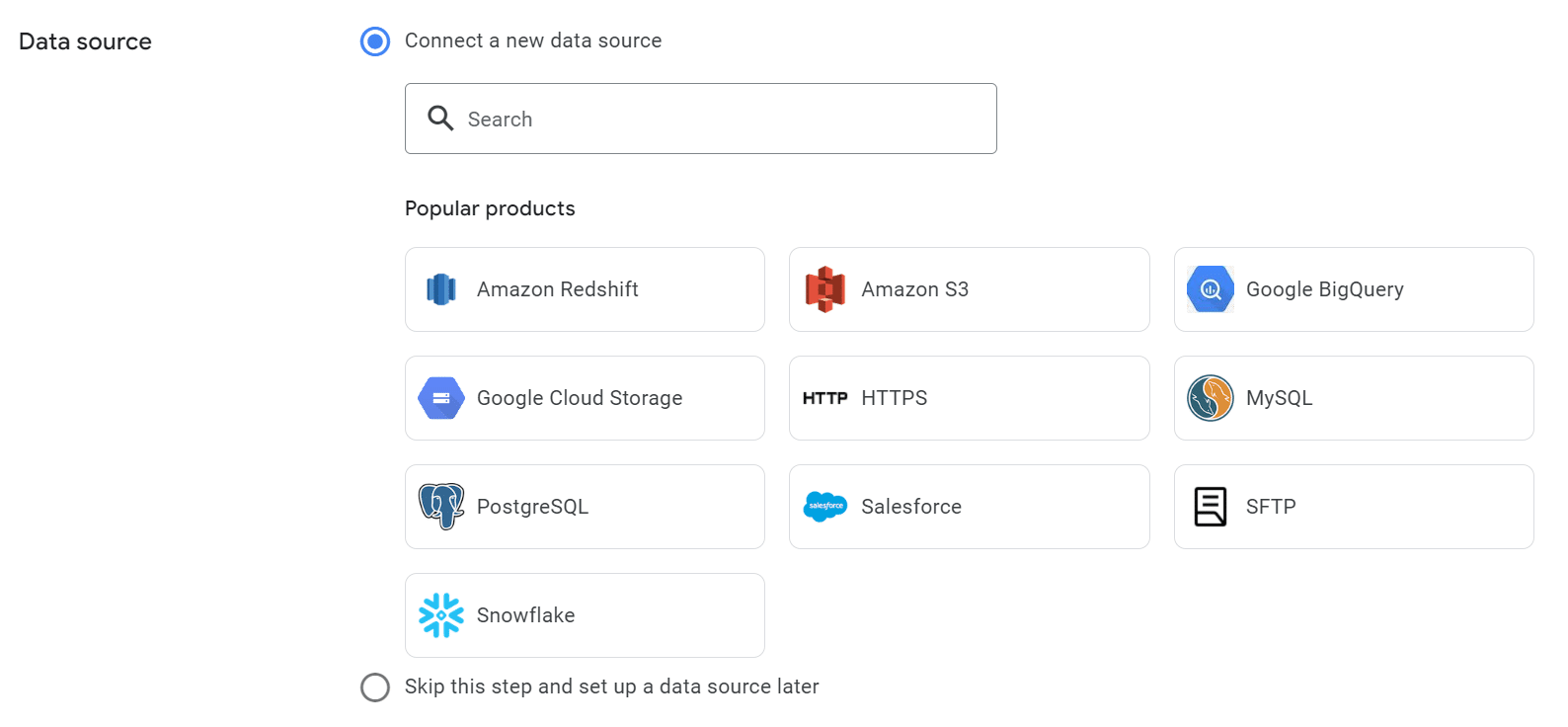
- Upload your prepared offline conversion data file. You can connect this data source as you set up conversions, or skip this step and do it later.
Then, match fields in your data file with Google Ads fields (GCLID, conversion details).
Finally, review mapped data fields and confirm the import.
Close the Loop Between Online Interactions and Offline Sales
By tracking offline conversions, not only will you be getting more data (which, as you know, is huge for Google Ads) but you’ll be getting better data.
You’ll see the full spectrum of your customer journey, from their first online engagement to their offline purchase.
To achieve even more success with Google Ads, set up your campaigns for success. My best-selling Google Ads book can help you with that. Or, if you need help maximising your ROI, get in touch for done-for-you campaigns – they’ve already generated millions of pounds in extra revenue for my clients!
